 780 624 3830
 9811 - 98 Ave, Peace River AB
ShareFile

ShareFile is our secure client portal for exchanging documents. Log in to your account, send us files, or find step-by-step help below.
Send Us Files Securely
No account needed. Upload documents directly to our team through our secure drop box.
Send FilesLogin Help & FAQ
Forgot your password or need help downloading documents? Step-by-step instructions are below.
View HelpShareFile Questions & Answers
Click a question to see the answer, or download the ShareFile FAQ (PDF).
What is the best way to send documents?
The most efficient way to send us documents is all at once through our ShareFile drop box. This saves us time, and that is reflected in your bill. Use the Send Files button above, or go to Contact in the top menu and select Send Us Files Securely.

- Enter your email, your name, and the company you are sending documents for (leave the company field blank if you are sending on behalf of an individual).
- Select the recipient you wish to send documents to. “Admin, Reception” goes directly to our receptionist.
- Drag and drop the files you would like to send, or select “Browse files”.
- Click the “Upload” button once you have selected all the files you wish to send us.
How do I reset my ShareFile password?
Step 1
Click Log In at the top of this page.
Step 2
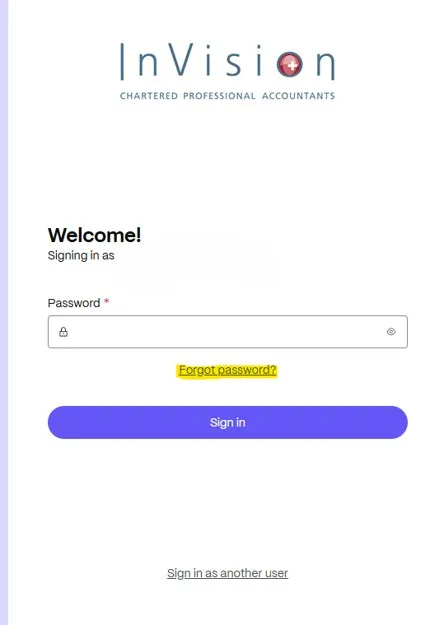
After you enter your email, ShareFile will ask for your password. Underneath the “Password” box, click Forgot password?
Step 3
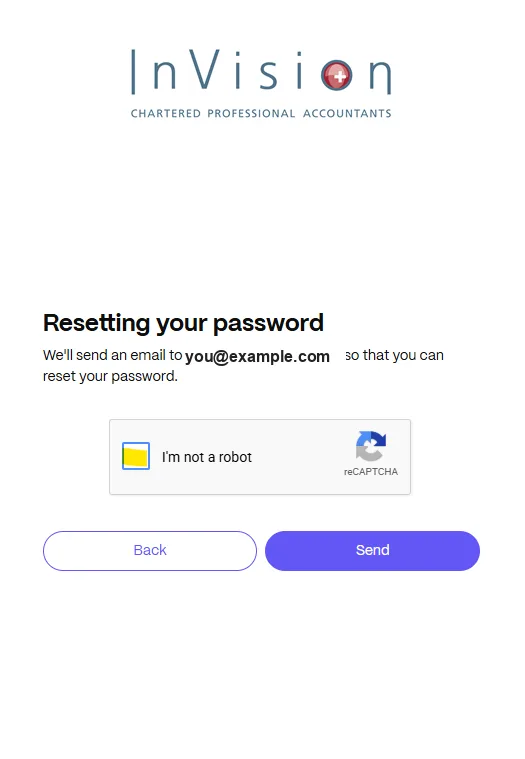
On the next screen, click “I’m not a robot”, complete the security verification, then click Send.
Step 4
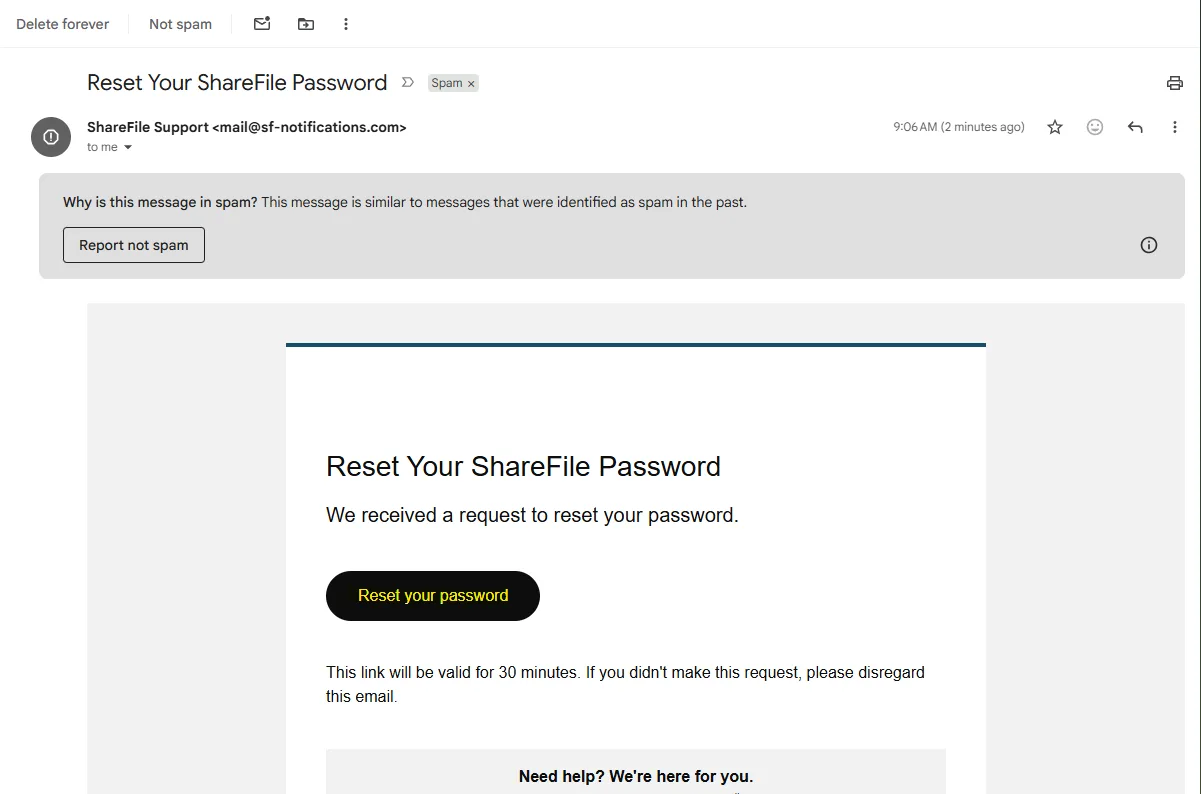
You will receive an email from ShareFile with a Reset your password link. Check your spam or junk folder too. The link expires automatically, so use it promptly.
Step 5
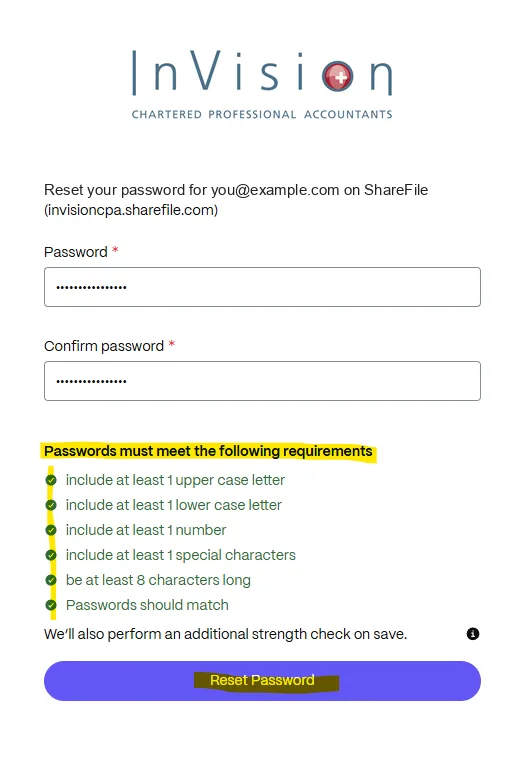
You will be taken to a page to create a new password. Make sure it meets all of the security requirements. The “Reset Password” button becomes active once every requirement is met.
Getting an error saying the password cannot be reset?
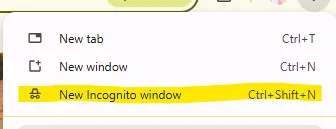
1. Try a private (“Incognito”) browser window. In Google Chrome on a laptop or desktop, click the three dots in the top right corner of the screen.

From the drop-down menu, select New Incognito window, then follow the steps above again in the new window.
2. Avoid repeated or consecutive numbers. If you still get the same message in an Incognito window, make sure your new password does not contain repeated or consecutive numbers, such as “123”, “111” or “22”.
How do I download my documents?
Step 1
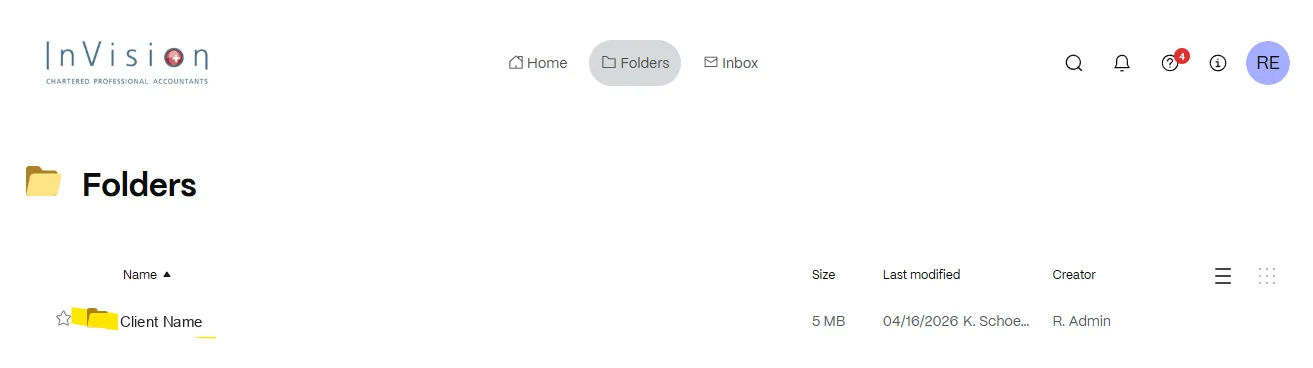
Once you are logged in to ShareFile, select Folders from the top menu bar.

Step 2
You will now see all the folders you have access to. Click the folder you wish to open.
Step 3
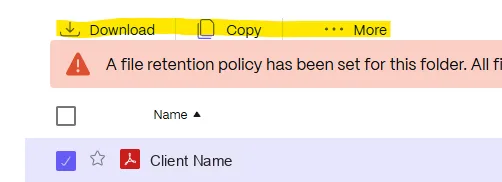
Tick the box to the left of each document you wish to download. Once selected, you will have the option to Download, Copy, or More.
Step 4
Select Download. The download begins immediately and is saved to your browser’s default location, such as your Desktop or Downloads folder.
Still need help? Call us at 780-624-3830 or contact our office.

